In This Help TopicPOC OverviewThis is a brief overview of some of the different features offered by POC. QVR Page Header
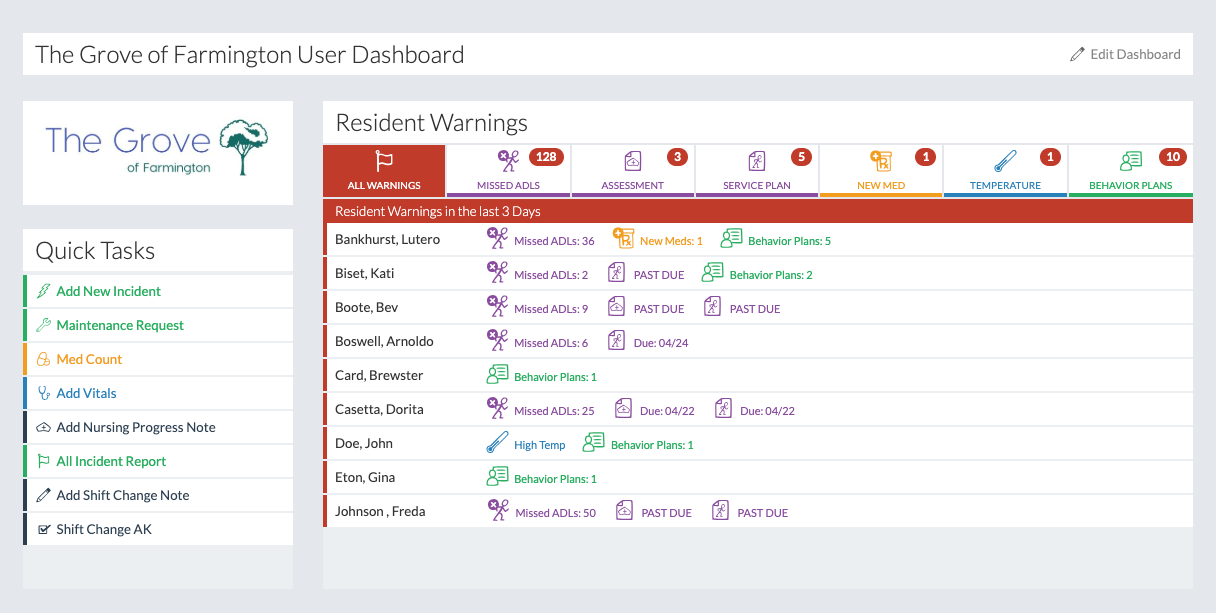
The Agency name will be displayed on the left. When clicked, the "Alerts" button will display all of the general alerts throughout the agency. The "Agency" dropdown can be used to navigate to different pages in the system, including other facilities if there are any. The "User" dropdown contains a link to the user's account and a link to log out. QVR Page NavigationThe amount of tabs on the page navigation will depend on the user's log in security settings running on the system. The "HR" tab has links to add staff, edit staff records etc. The "Providers/Vendors" tab has links to add providers such as dentists, doctors, pharmacies, etc. The "Marketing" tab has links to add and manage leads and potential clients. The "Resident" tab has links to comprehensive client records. The "Charting" tab has links to easily chart medications and ADLs. The "Community" tab has links pertaining to the community setup process. The "Reports" tab has links to different reports. QVR DashboardThe QVR dashboard is customzable.
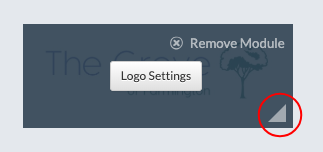
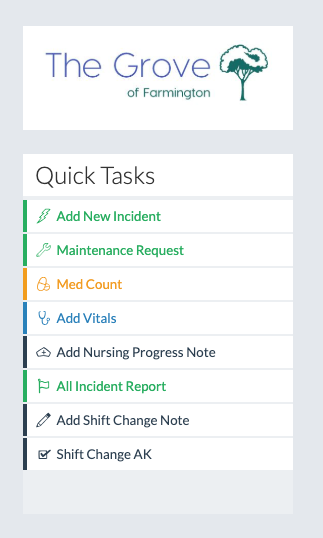
A logo can be added. The "Quick Tasks" module contains personalized links to specific reports or actions.
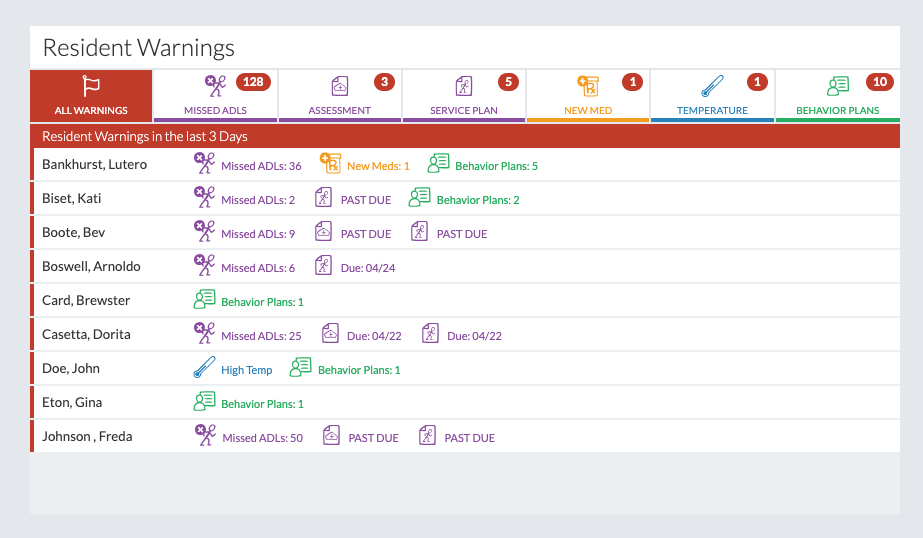
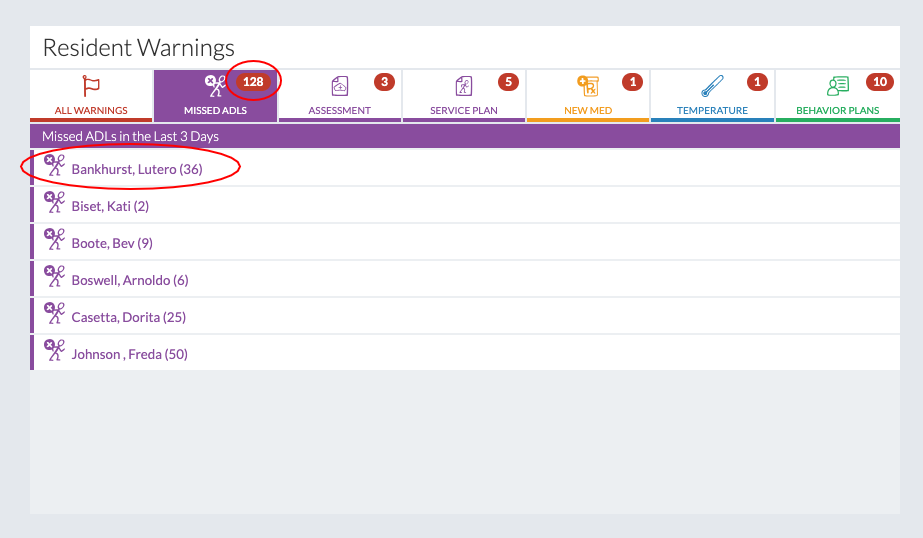
The "Resident Alerts" module shows all the alerts triggered throughout the facility.
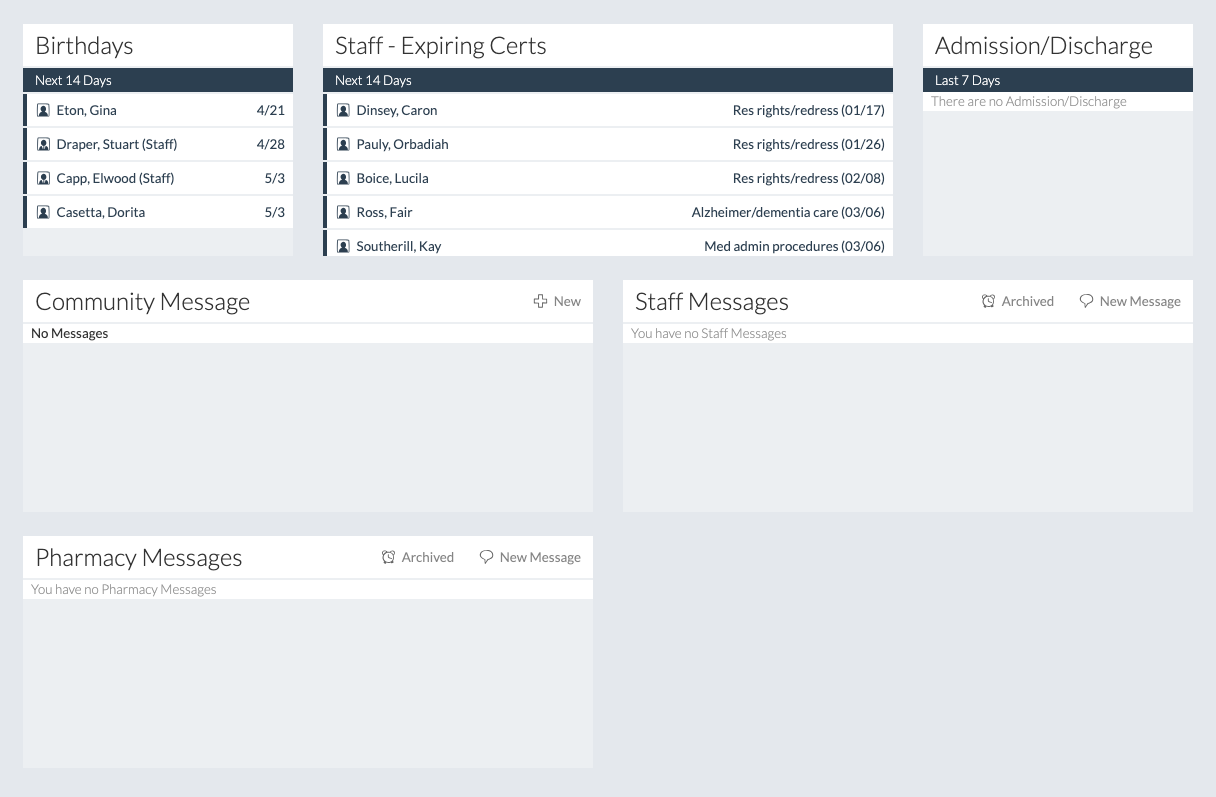
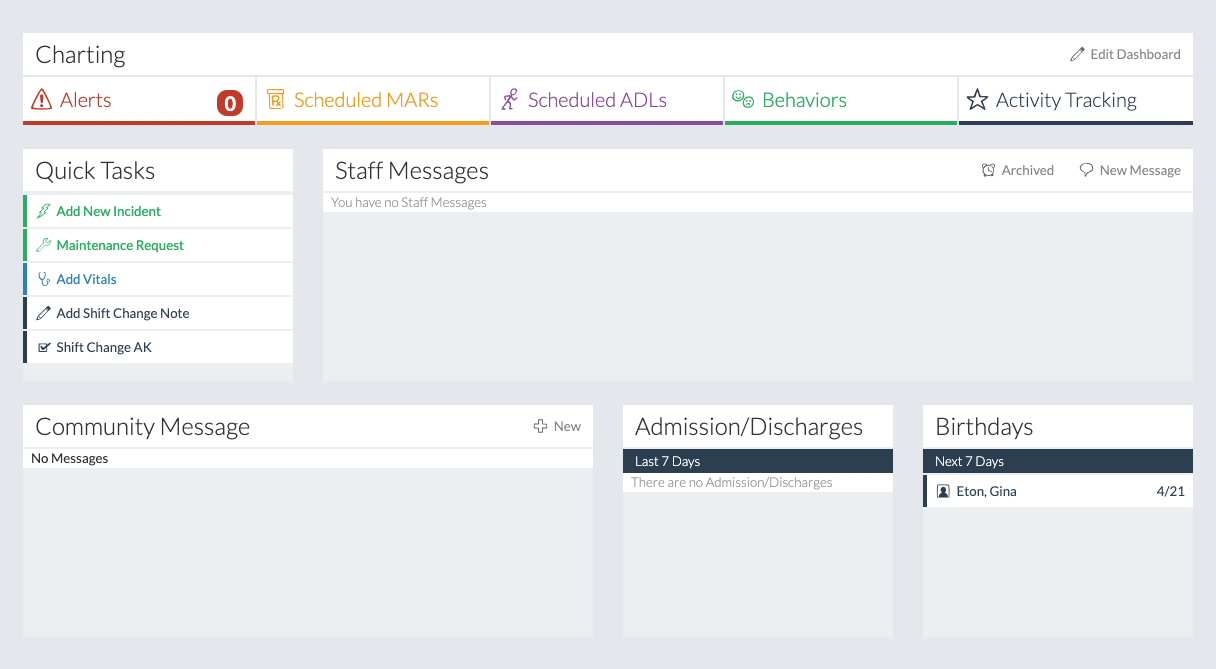
Other types of modules display their respective information. Charting DashboardThe Charting dashboard looks and works the same way as the QVR dashboard, for exception of the Charting navigation.
|