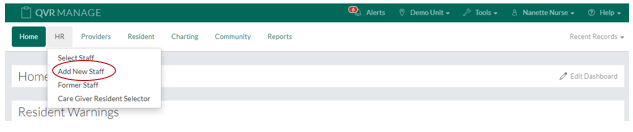
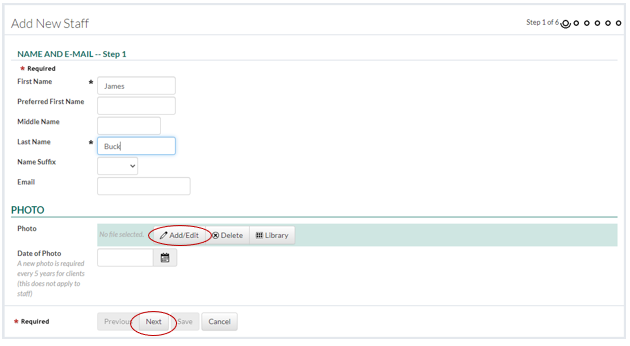
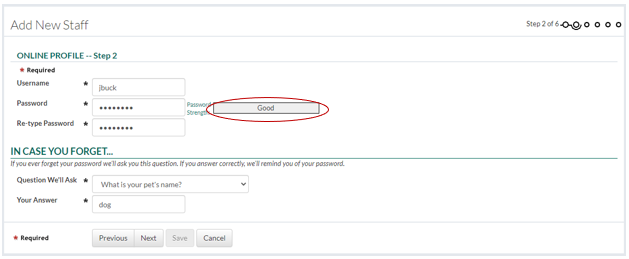
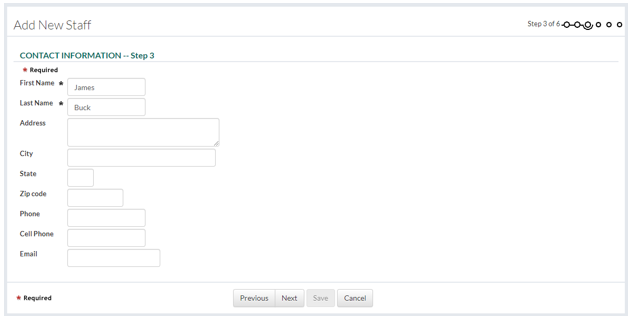
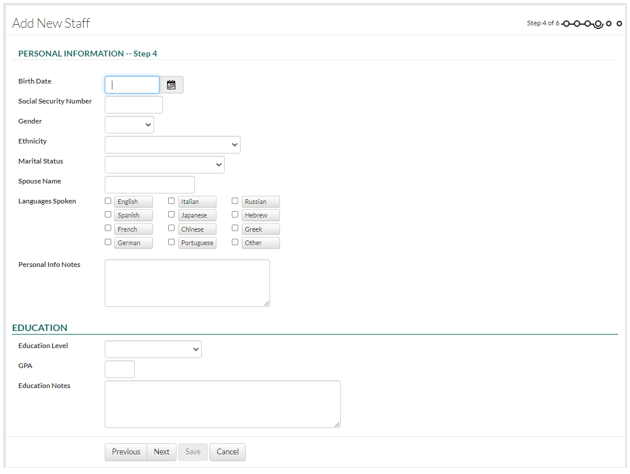
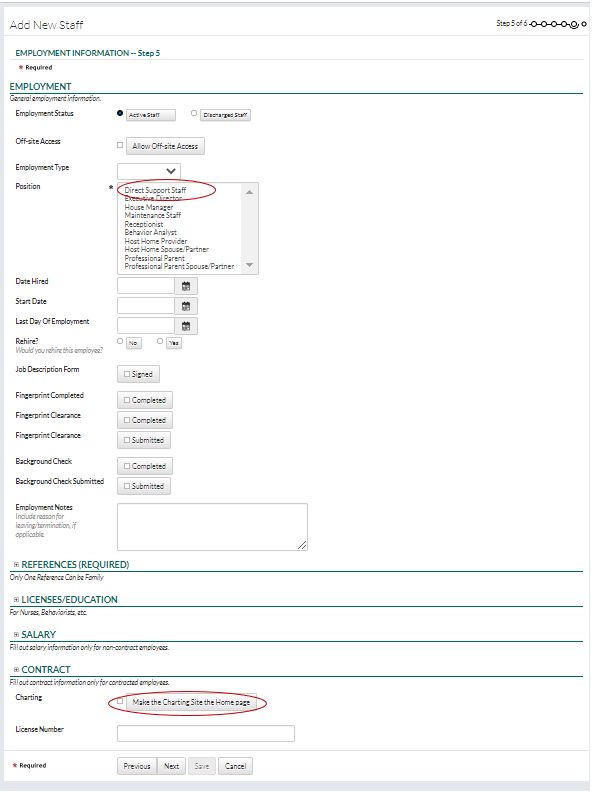
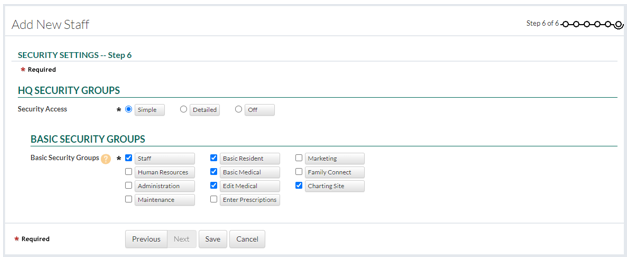
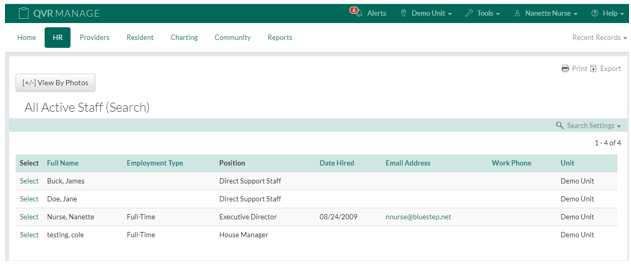
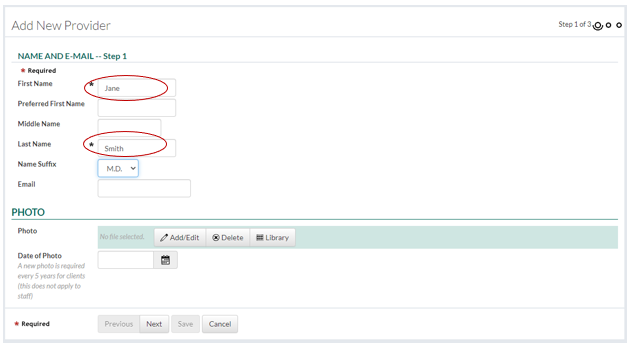
In This Help Topic02. How to Enter Staff and ProvidersSteps to Adding Staff and the Client's Providers (IE: Doctors, Pharmacy, Dentist, etc) Add New Staff1. Click on "Add New Staff" under the "HR" tab. 2. Fill out the form with the new staff member’s information. To add a photo click on the “Add/Edit” button in the “Photo” section. Click the “Choose File” button and choose a file from the computer. The required fields must be filled out before proceeding to the next step. 3. Click the “Next” button to proceed. 4. Enter a username and password for the new staff member. The password strength must be at least “Good” in order to be saved. The staff member will be required to change this password when they log in for the first time. 5. Click the “Next” button to proceed. 6. Fill out the form with the new staff member’s information if desired. These fields aren’t required. Enter a cell phone number and carrier, and the new staff member will receive text alerts. 7. Click the “Next” button to proceed. 8. Fill out the form with the new staff member’s information if desired. These fields aren’t required. 10. Select the desired staff position (this is a required field 11. By checking "Make the Charting Site the Home Page", the staff will always have the charting home page presented to them when they login rather than having to navigate to the Charting Home page. 12. The Security Groups are the permissions given to staff to allow them to access certian areas of QVR. The security groups displayed below are the most common securities given to direct care staff to all them to chart medications, chart ADLs, chart Goals and Support Strategies and track Behaviors. Security access can be viewed as Simple (as seen below) or as Detailed. 13. Click the Save button to complete the process of adding a new staff. All staff can be viewed by clicking the HR dropdown menu and then clicking the "Select Staff" link. All active staff will then be displayed. Add New Provider1. Click on "Add New Provider" under the Provider dropdown menu. 2. Fill out the form with the new provider’s information.
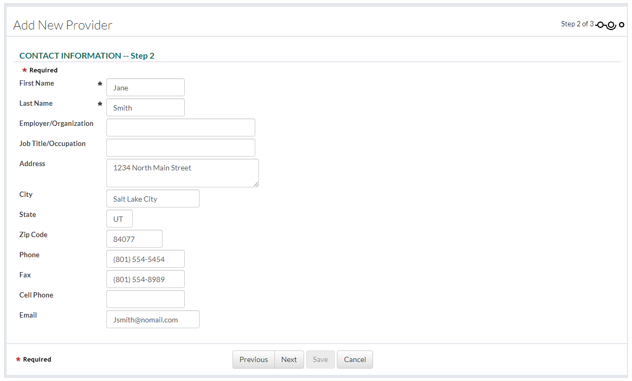
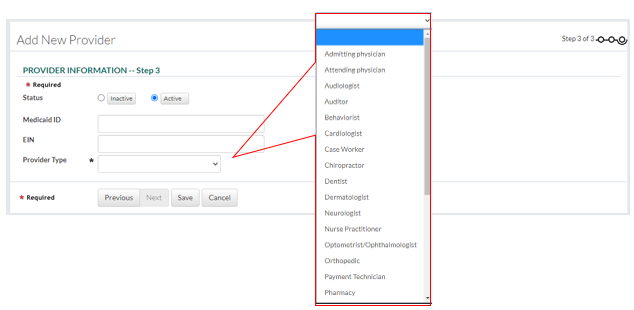
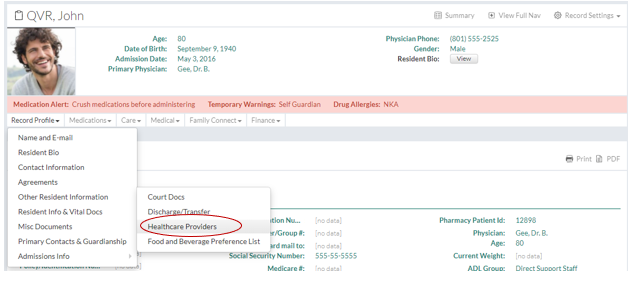
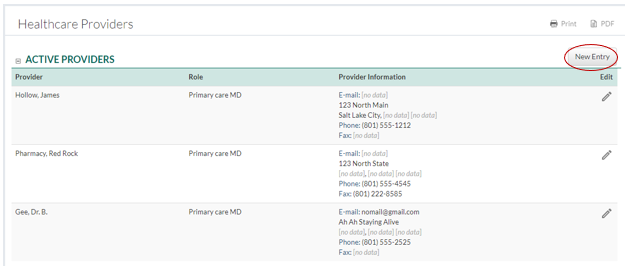
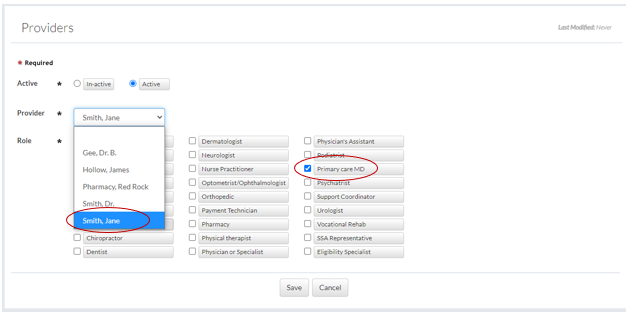
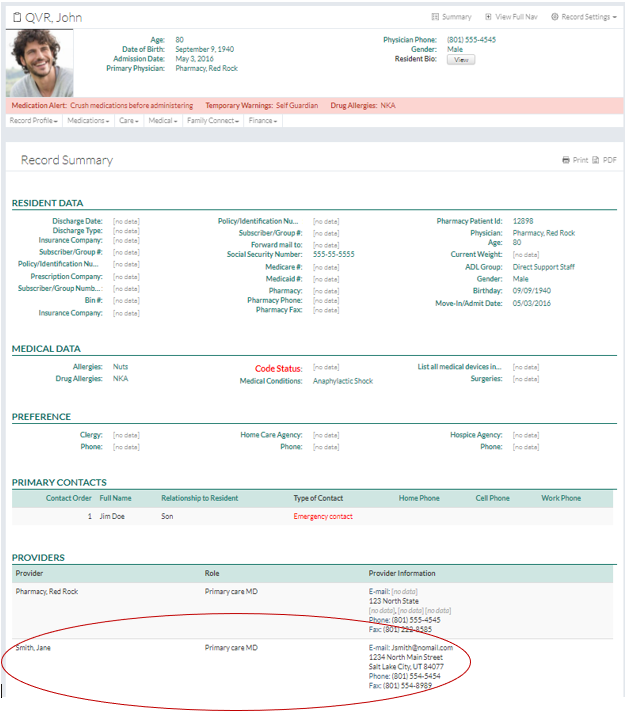
4. Fill out the form with the provider’s work information. 6. Select a "Provider Type" from the drop-down menu. 7. Click the "Save" button to finish. Add a Provider to a Client Record1. Click on “Healthcare Providers” under the “Resident Profile” dropdown. 2. Click the “New Entry” button to add a new provider. 3. Select the provider you would like to add from the "Provider" drop-down menu. 4. Define the provider's role for this client. 5. Click the "Save" button. |