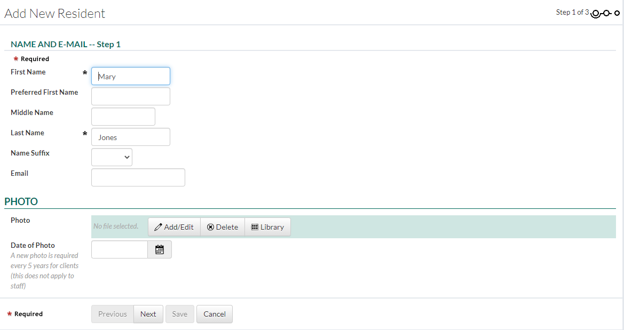
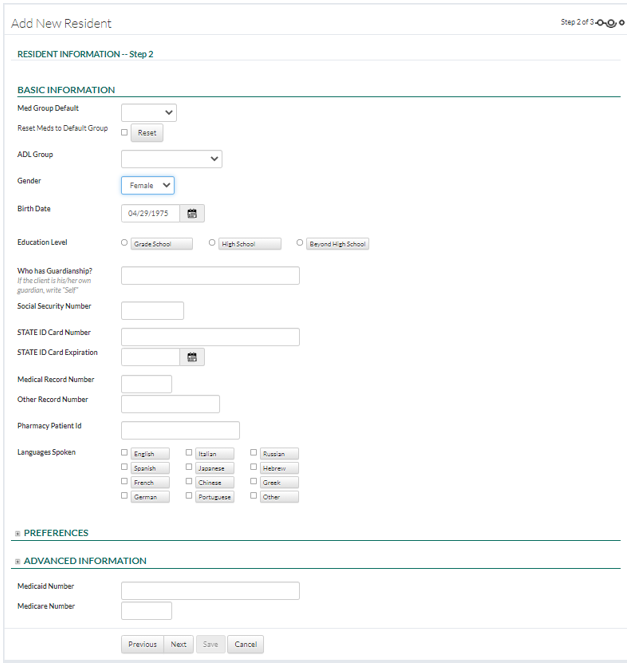
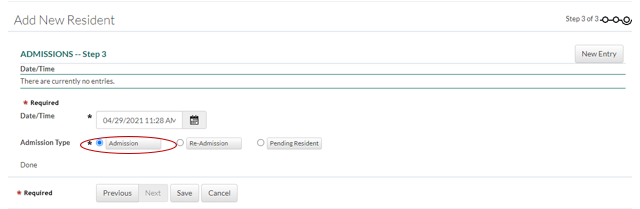
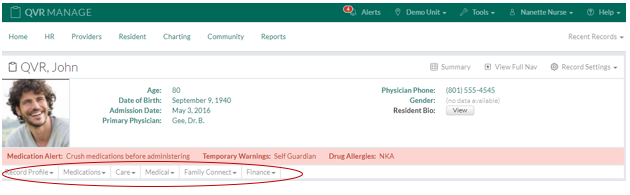
In This Help Topic03. How to Enter a ResidentHow to Enter a Resident or move a resident from a Marketing Lead to Admitted. Adding Resident Contacts and Resident Providers. How to Enter a Resident/Client1. Click on "Add New Resident" under the "Resident" tab. To add a photo click on the “Add/Edit” button in the “Photo” section. Click the “Choose File” button and choose a file from the computer. The required fields must be filled out before proceeding to the next step. Age will be calculated once the form is saved if a birth date is entered. The “Preferences” and “Advanced Information” sections are optional. More data can be entered once the sections are expanded. Expand the sections by clicking on them. Enter the date and time of the admission, and enter an admission type. Navigating the New Client’s Record SummaryData is entered into the Record Summary by filling out forms in each dropdown.
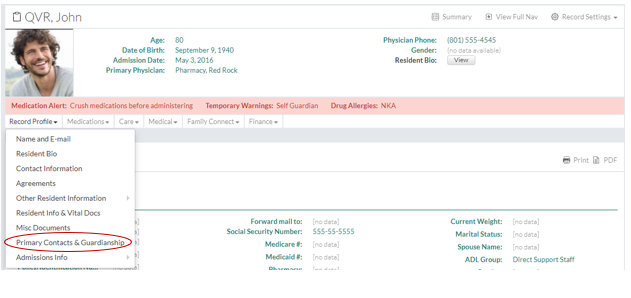
Multiple primary contacts can be added for each resident. 1. Click on “Primary Contacts & Guardianship” under the “Resident Profile” dropdown.
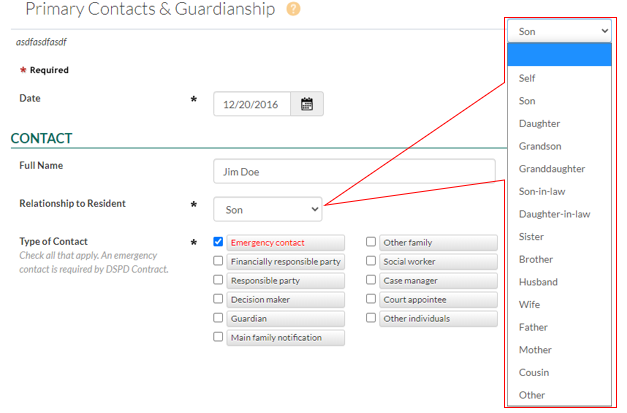
2. Click the “New Entry” button to add a new primary contact. 3. Fill out the form with the primary contact’s information.
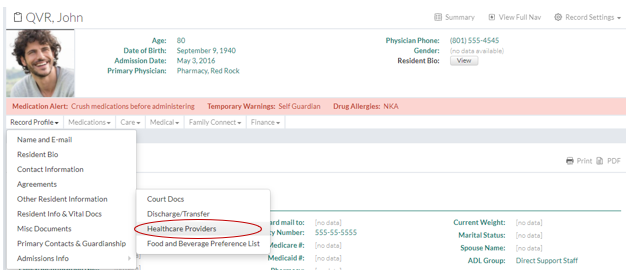
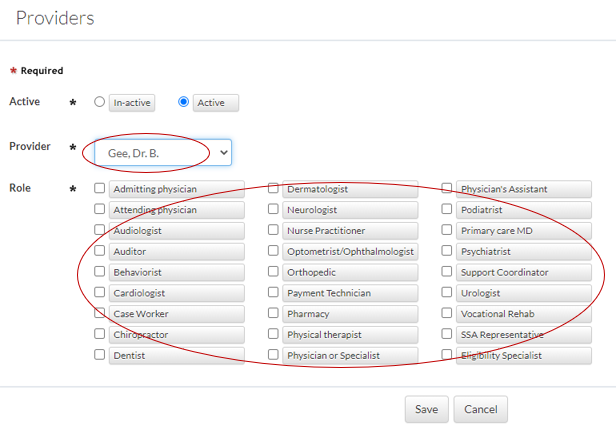
4. Click the “Save” button to finish. 1. Click on “Healthcare Providers” under the “Resident Profile” dropdown. 2. Click the “New Entry” button to add a new provider. 3. Fill out the form with the provider’s information. Select the provider. Select the role of the provider. 4. Click the “Save” button to finish. The Client's Summary page will be updated with the information added. |


 2.
2.