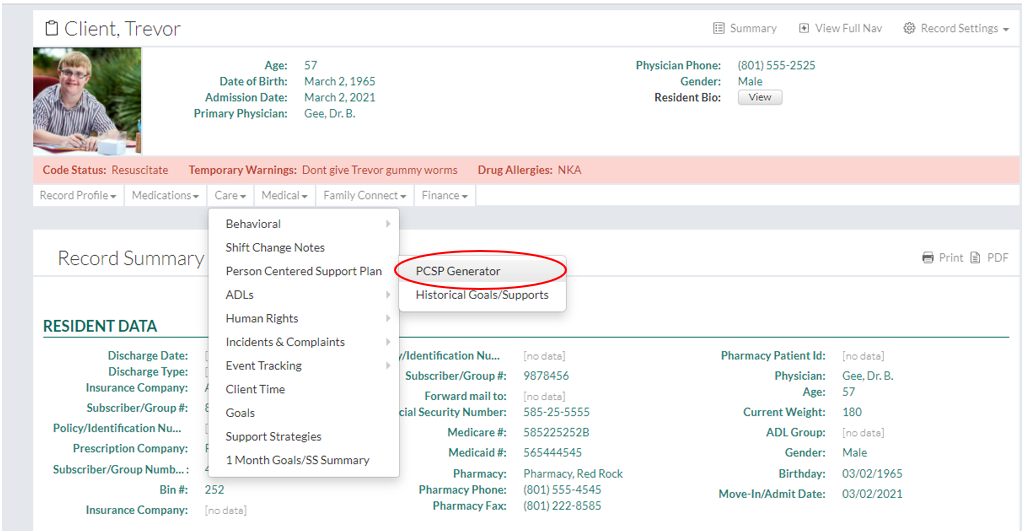
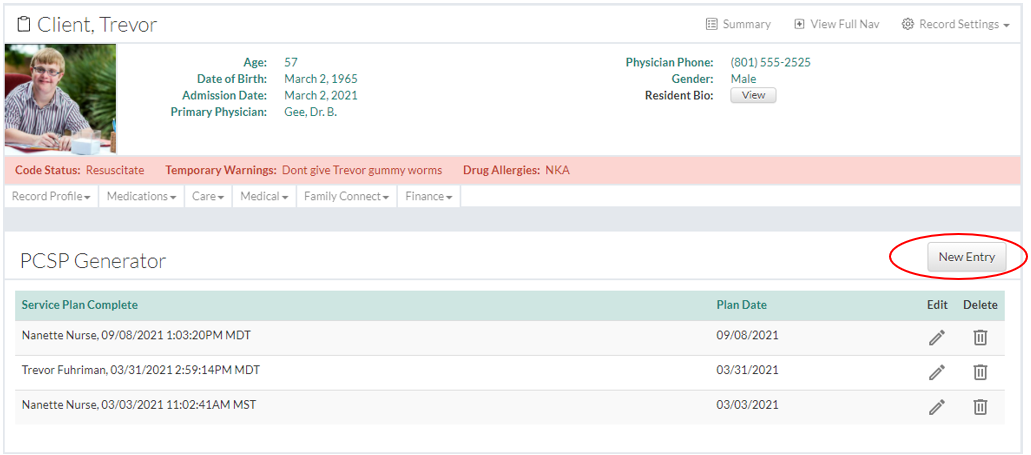
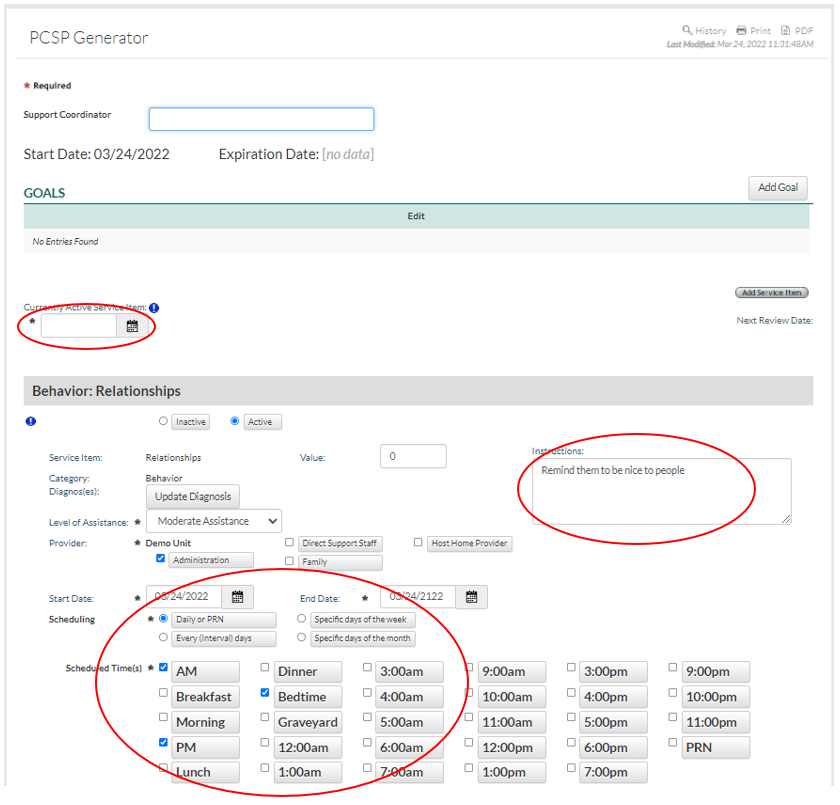
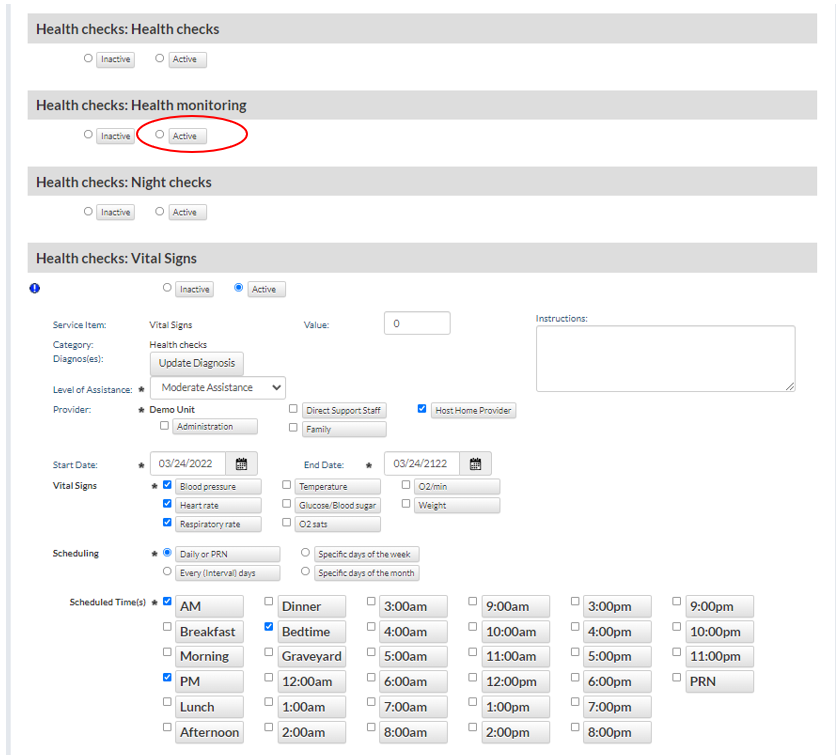
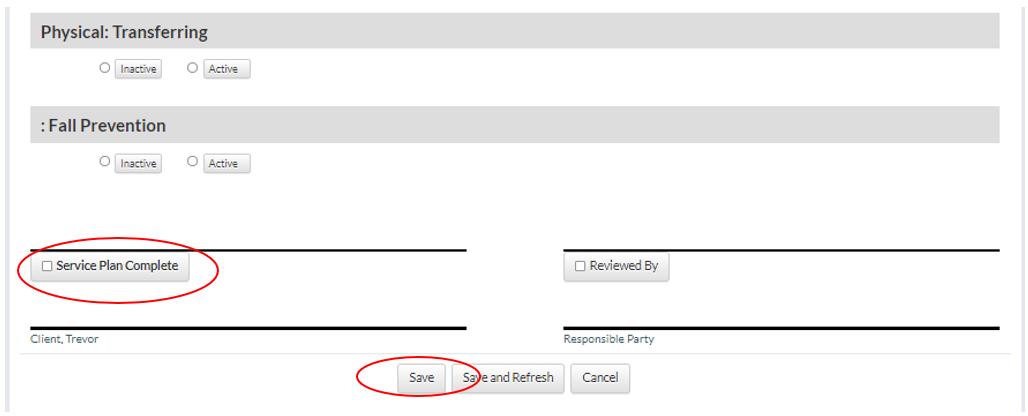
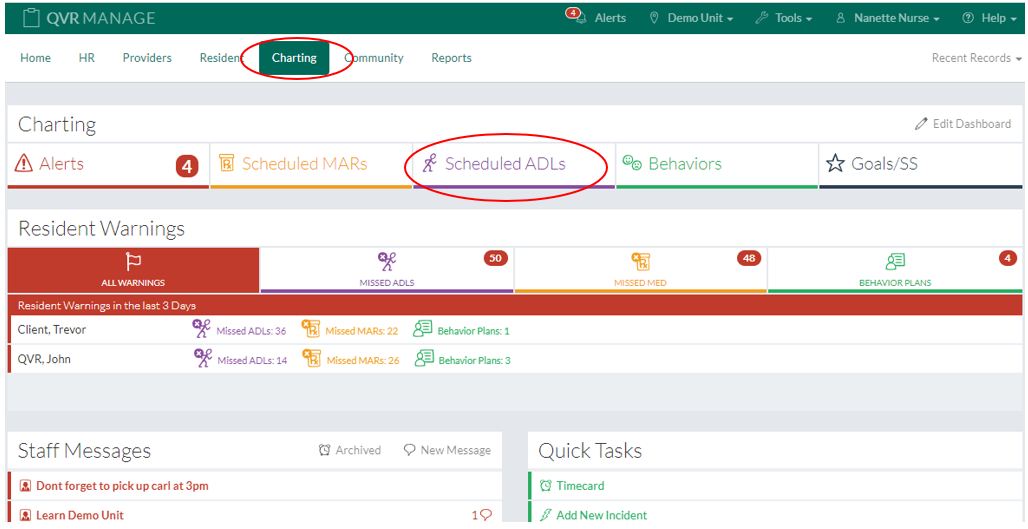
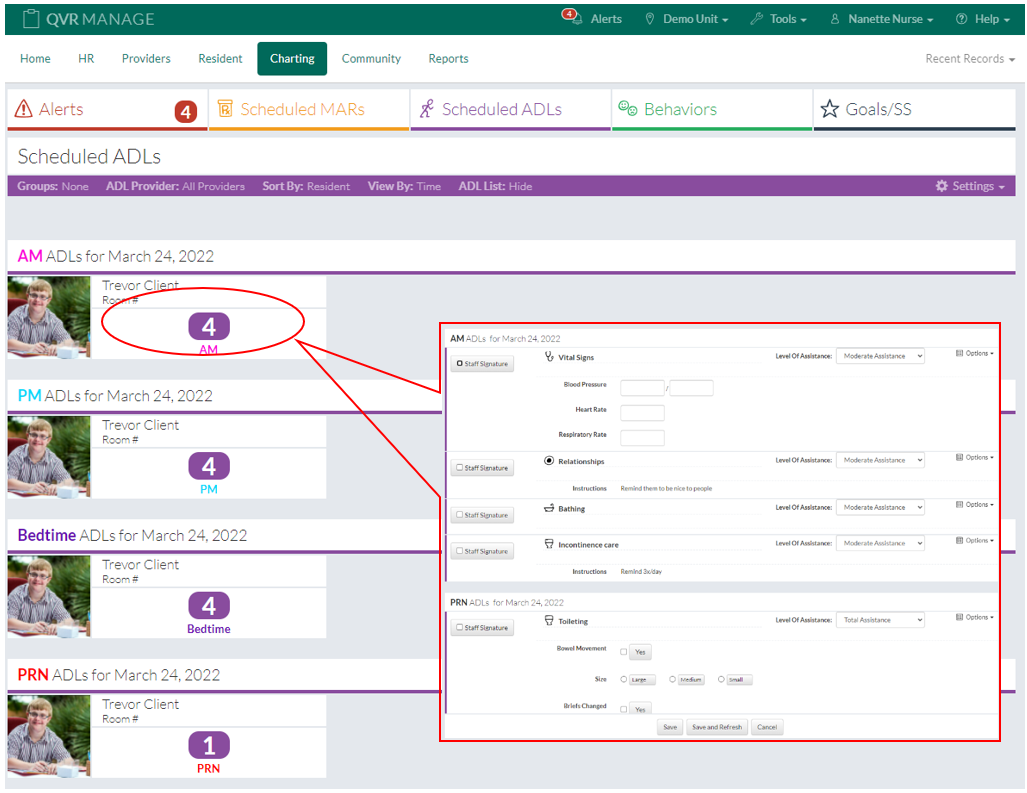
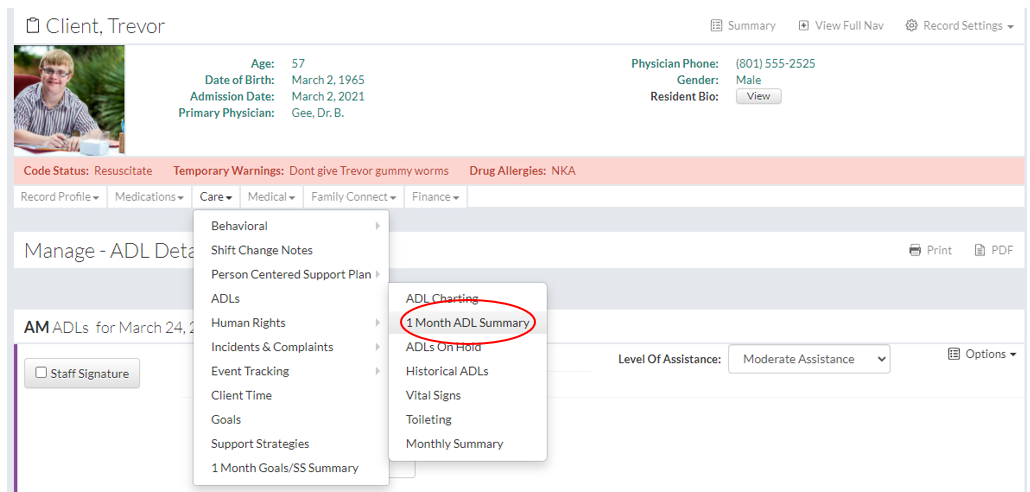
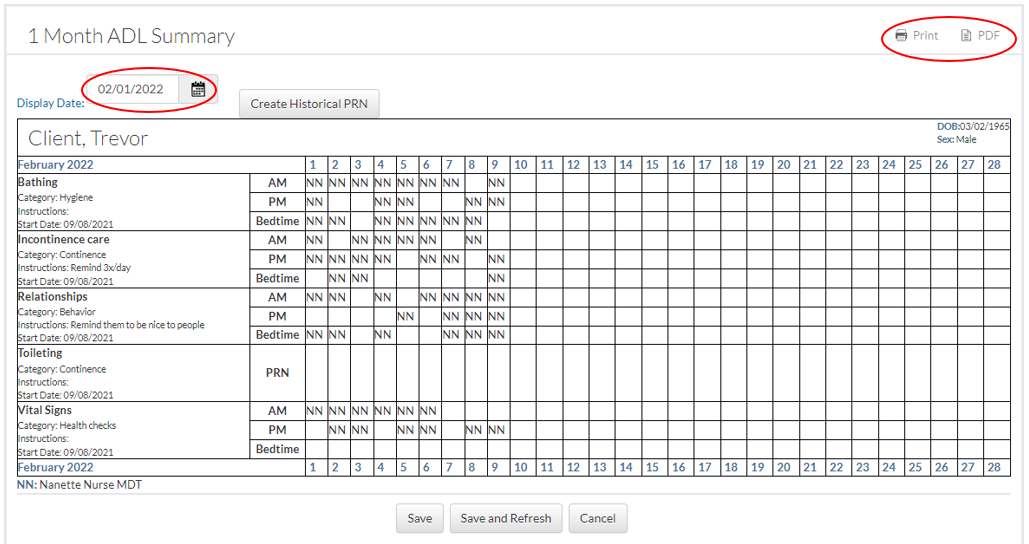
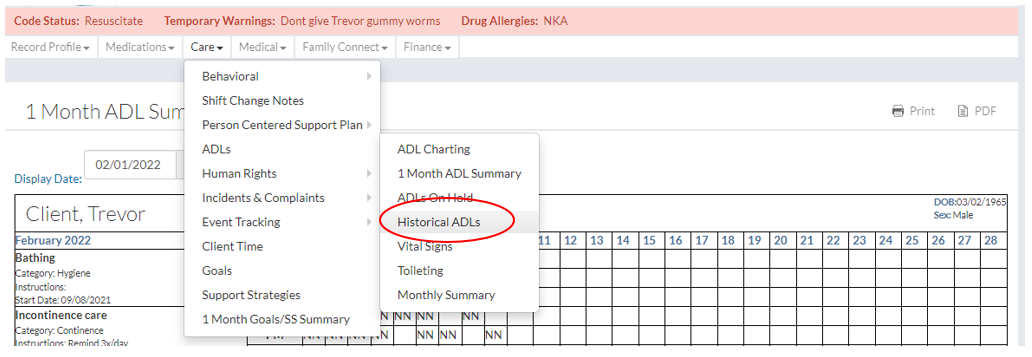
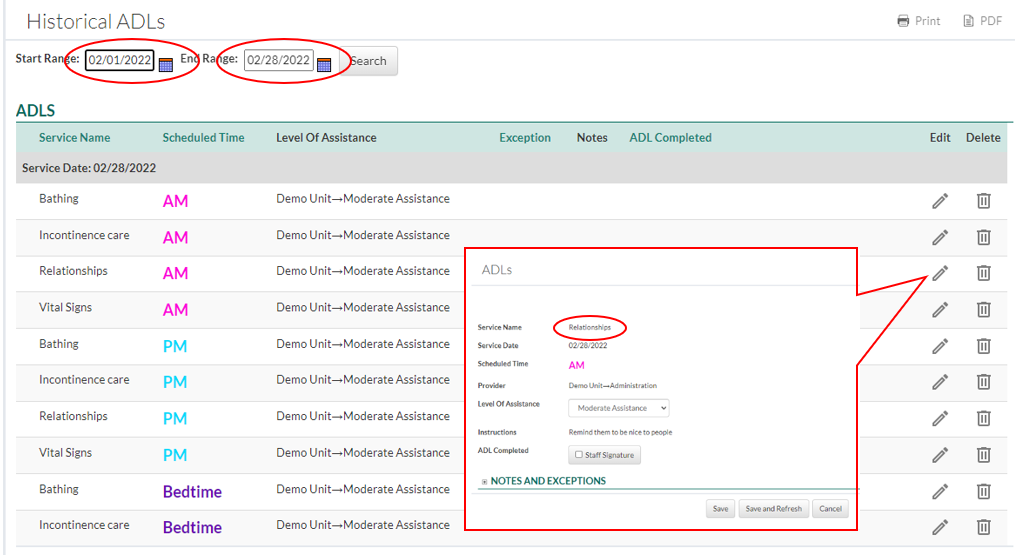
In This Help Topic06. Creating a New PCSP (Service Plan)Learn how to create a new service plan. The service plan needs to be set up in the Community Record before a new service plan can be created. See the Setup: Nursing Assessment and Service Plan help topic if not set up yet. It is also ideal to have completed a nursing assessment before creating a service plan, however it is possible to create a service plan independent of a nursing assessment. Creating a new PCSPHow to create a new Person Centered Service Plan that will generate ADL's for staff to chart on. 1. Select a client, then navigate to the PCSP Generator 2. Click the "New Entry" button to start a new PCSP 3. Complete the PCSP by: A. Adding a Date in the "Currently Active Service Item" field B. Activate the ADL's that you would like to create charting for, then complete the active ADL by adding instructions, Level of Assistance, who is providing the care, and scheduling the time (s). C. Each section of the PSCS will allow you to make the ADL "Active" or "Inactive" 4. To complete a PCSP and start generating ADL's to be charted on, you must click the "Service Plan Complete" button and then "Save" How to Chart on Scheduled ADL'sHow to chart on scheduled ADL's after a PCSP has been created. 1. Navigate to the Charting site and click on the Scheduled ADLs tab 2. Select the client you want to chart an ADL on. When the new window opens, click the staff signature button and enter any notes, vitals etc. then click on the "Save" button. ADL Reports/Monthly Summary1. To view a 1 Month ADL summary, navigate to the report by selecting a client then clicking on Care>ADLs>1 Month ADL Summary 2. Change the Display Date then click the "Save and Refresh" button to look at any past ADL summary reports. These reports are also printable. 3. To view the "Historical ADLs" report select a client then click on Care>ADLs>Historical ADLs 4. Adjust the Start and End Range to any month in the past and then click the "Search" button. 5. Click the edit pencil to view or sign off on any historical ADL(s) and then click the "Save" button. |